Guide Sections
The Basics
Drop in whatever you have — we'll pull the flights out of it.
- CSV or spreadsheet exported from your logbook (
.csv,.xlsx,.xls,.ods) - A photo of a paper logbook page
- A PDF logbook or training record
- A forwarded email with your flights in it
Exports from the logbooks listed in the sidebar are recognized automatically and are always free to import. Anything else gets read by AI, and you review every row before it becomes a flight.
Airport identifiers: ICAO codes work best. IATA and FAA identifiers also work — we'll match them automatically, and anything we can't resolve is flagged for you to fix on the review screen.
Custom Locations
For off-airport operations or unlisted strips, put raw coordinates in your logbook file.
LAT/LONG (e.g. 40.7468831/-73.994756)
No spaces. Arelplane creates the location for you, or links to one another pilot already added at those coordinates.
Spreadsheet Import
Keep your logbook in Excel, Numbers, or Sheets? Upload it as-is, or use our template so the columns line up on the first try.
Required columns: Date, From, To.
Optional: AircraftID, Route, TimeOut, TimeIn, TotalTime, PIC, Distance.

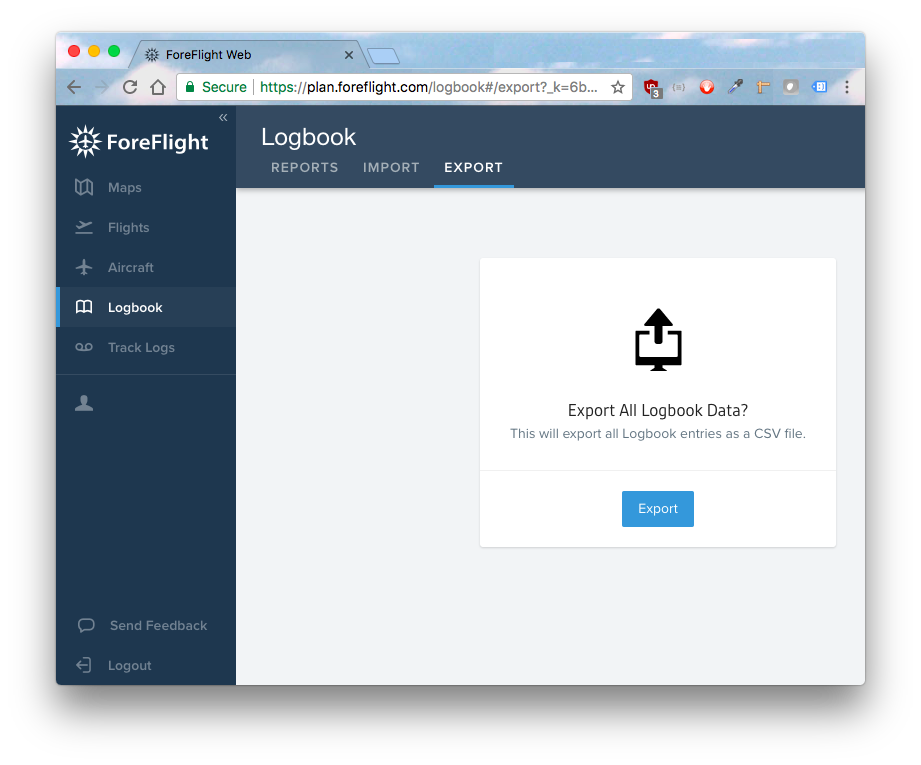
ForeFlight
- Go to plan.foreflight.com and log in.
- Click Logbook in the left sidebar.
- Click Export at the top of the page.
- Download the CSV and drop it into Arelplane.

Garmin Pilot
- Open Garmin Pilot and go to Logbook.
- Tap the share/export icon and choose Export Logbook.
- Pick the CSV format, then email or AirDrop the file to yourself.

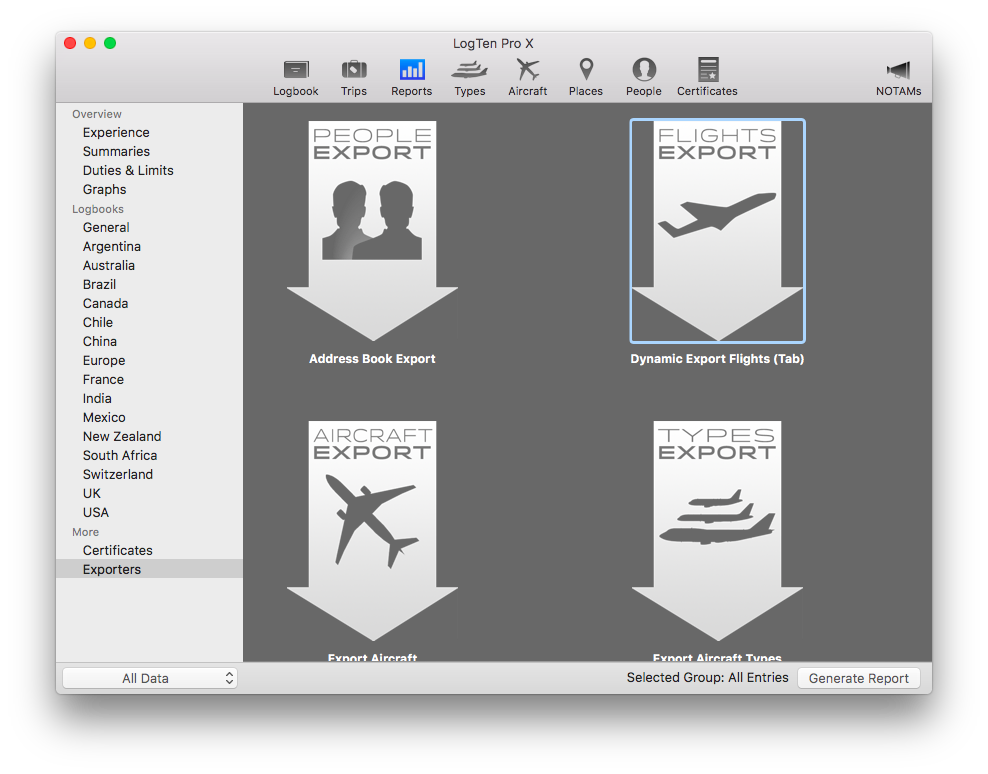
LogTen Pro
- In the LogTen Pro app, go to Reports.
- Select Exporters.
- Choose Dynamic Export Flights (Tab).
- Save the file and drop it into Arelplane.

mccPILOTLOG
- Go to the Query page.
- Set your parameters — or leave them empty to get every flight — and press F10 Search.
- Under Export data, click the second icon to export as CSV.


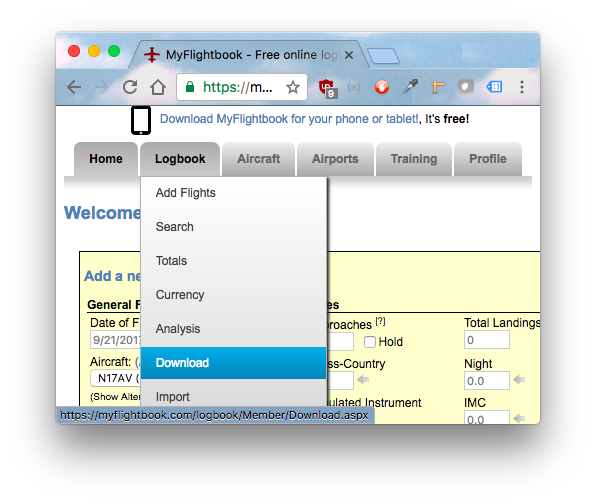
MyFlightbook
- Go to myflightbook.com.
- Hover over Logbook in the top menu.
- Select Download → CSV File.

Logbook Pro
- Select File → Export → Export to CSV, then save the file.
The downloaded file is usually called something like
Bob Bobson Logbook Flight Log _2017_09_18.csv.

Safelog
- Log in to your Safelog account on the web.
- Go to Reports & Exports and choose the CSV export.

ZuluLog
The downloaded file is usually called something like
zululog_export.csv.
We don't have verified export steps for ZuluLog yet — export any CSV and drop it here, and send us a message if you know the steps so we can add them.

CrewLounge PILOTLOG
CrewLounge changed their exports in a way that is very hard to process automatically. If you want to import a CrewLounge logbook, ask CrewLounge support to let you export with ICAO identifiers in a plain CSV format — then drop that file here.

FlyGo Pilot Logbook
The downloaded file is usually called something like
export_version1.csv.
We don't have verified export steps for FlyGo Pilot Logbook yet — export any CSV and drop it here, and send us a message if you know the steps so we can add them.

FlyLogio
- Open Settings and look for the Export/Backup option.
The downloaded file is usually called something like
logbook-csv-export.csv.

PilotPro
- In the app, open Settings → Export and choose CSV.

Aviation Pilot Logbook (Android)
The downloaded file is usually called something like
logbook-csv-export.csv.
We don't have verified export steps for Aviation Pilot Logbook (Android) yet — export any CSV and drop it here, and send us a message if you know the steps so we can add them.

Smart Logbook
- Select the flights you want, or go to Settings → Export → CSV.
The downloaded file is usually called something like
logbook_2018-10-09_180040.csv.

Logbook.aero
- Go to Flights → Import/Export → Export to CSV.
The downloaded file is usually called something like
export.csv.

Skylog
- In the desktop app, choose File → Export and save as CSV.

Logshare
- Open your profile settings and choose Export Data in CSV format.

Anytime Logbooks
- In the app, go to Settings → Backup/Restore → Export to CSV.
- Email the file to yourself so you can upload it here.

FlySto
- Open your logbook view, click the cloud Export icon, and choose CSV.

VATSIM
You can link your VATSIM account for automatic imports, or export your stats from the VATSIM stats center as CSV and drop the file here.